

eInkPads
On the Move Meeting Booklet
On the Move Meeting Booklet
Couldn't load pickup availability
On the Move Meetings
Lead smarter meetings. Stay organized. Drive action.
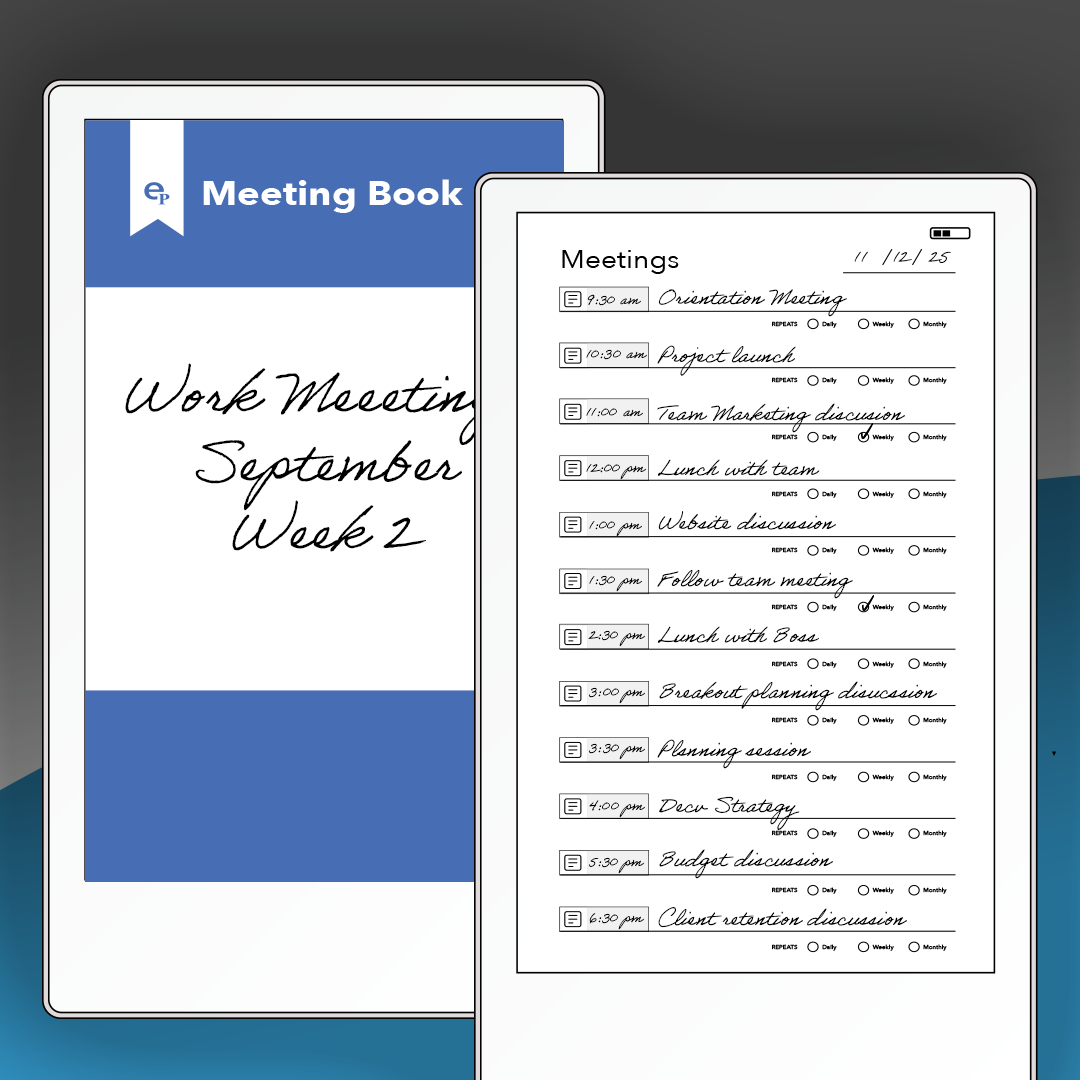
The Meeting Planner is purpose-built for professionals who want to bring clarity, structure, and follow-through to every meeting — all from your reMarkable Move device.
Whether you’re managing a full schedule of back-to-backs or organizing key client sessions, this planner helps you stay focused on what matters most: outcomes.
✨ Key Features
- Meeting Overview Page
-
- View up to 12 meetings at a glance, complete with date, time, and repeat indicators — all on one organized screen.
- View up to 12 meetings at a glance, complete with date, time, and repeat indicators — all on one organized screen.
-
Individual Meeting Pages
- Tap on any meeting to open a detailed, linked page where you can:
- Define the Purpose
- List Attendees
- Capture Meeting Notes
- Assign Action Items with checkboxes
- Rate the Meeting for future improvement
Simple Repeat Toggle
Mark meetings as recurring with a clean, easy-to-use checkbox.
Fully Navigable PDF
Tap to jump between meetings, overview, and deep dive pages seamlessly on your Move device.
Template Satisfaction Guarantee - Click for Details
Template Satisfaction Guarantee - Click for Details
If you’re unsatisfied with a purchased template, we’ll offer a free template of equal or lesser value. Limited to one per order.
Helpful Tips
How do I put this on my tablet?
How do I put this on my tablet?
You can import PDFs using the app available at remarkable.com. For PNGs, use either the Template Installer App or our Desktop Manager App (Binder) for installation.
What is the difference between a PDF and a PNG Template?
What is the difference between a PDF and a PNG Template?
A PDF functions like a multi-page notebook, typically featuring fixed navigation. This means you cannot add custom templates to additional pages after creation. In contrast, PNGs serve as templates for alternating page backgrounds throughout your notebook, offering more flexibility to build it according to your needs. PDFs can be imported using the app available at remarkable.com, while PNGs need to be installed using either the Template Installer App or our Desktop Manager App (Binder).
How do I Personalize Screens on my tablet?
How do I Personalize Screens on my tablet?
Personalizing your tablet screens can be a creative way to add personal information for protection in case your tablet is lost or stolen. Include your contact details so someone can reach you to return it. You can also add your logo or a photo of your favorite pet. The possibilities are endless, so feel free to get as creative as you like.
To Install screens you will need our Screen Personalizer App (Splash).
Everything Guaranteed to work on all versions of the Remarkable Tablet
Share